Showing posts with label Linux. Show all posts
Friday, August 31, 2012

Adding extra jar files to Ant path in Fedora/RHEL


The default RPM packaged version of 'Ant' that comes with Fedora/JPackage doesn't doesn't respect the $ANT_HOME environment variable the same way as if you have downloaded and installed it directly from Apache itself.

These days, having a little more to do with J2EE work as they are good sample applications for testing our JVM, I'm having to pick up various build tools that I don't normally use, like Apache Ivy and Maven. Ivy works as an additional jar to supercharge Ant's capabilities, and hence a post as a self reminder. There are essentially 2 ways of accomplishing the task:

1) Put "ivy.jar" into our custom development distro by default into /usr/share/ant/lib. This is a nice option for all developers, since we won't need to do anything extra for it to work. But it isn't tracked by package management (ie not an RPM), and neither should developers put in the file into /usr/share/ant/lib just because we have local superuser rights, since management of these issues should be done by the sysadmin, automatically if possible.

2) Workaround this situation by having a local override of the Ant configuration. Create the following directory structure in your $HOME/.ant directory, eg.


[vincentliu@workstation08 ~]$ tree $HOME/.ant
/home/vincentliu/.ant
|-- ant.conf
`-- lib
     `-- ivy.jar


In the ant.conf file, have the following lines:


[vincentliu@workstation08 ~]$ cat $HOME/.ant/ant.conf
# Need to override the existing $ANT_HOME path that JPackage customized
# to add in the ivy package as part of Ant's classlib
CLASSPATH=$HOME/.ant/lib/ivy.jar


Copy the ivy.jar file into $HOME/.ant/lib directory. And these changes will allow you to compile use Apache Ivy natively without littering multiple copies of it per project. 
Sunday, April 17, 2011

The Future of Linux UI Scares Me

I don’t think I have mentioned that I moved from Ubuntu to Fedora. Two years ago.

Why has this to do with the state of the Linux desktop? I’d say at least somewhat to do with it. When I last switched from Gentoo to Ubuntu, it was due to the eventual frustration with the incessant amount of tinkering I had to do in order to get things work.

Most people would have jumped the bandwagon and moved to the newer, and trendy MacOSX. But you know what? What most Linux windows manager have is the “focus follows mouse” feature, which is the most Zen-like simplicity that no other non-unix OSes have. That was why I swapped to Ubuntu, which was the new poster-boy for the “Linux that Just Works”.

The charm however, did not last. “apt-get” was the loveliest feature that I embraced, and it was great that Ubuntu finally fast-tracked Debian to bring forth the most bleeding edge of software packages, albeit with a higher defect rate than the rock solid Debian. Even so, the defect rate in Ubuntu wasn’t something that I perceptively noticed. Not until it came to development tools.

Fedora is the undisputed leader for being the distro by the developers, for the developers. Ubuntu is great, but only when you don’t have to tinker under the hood. If you are, then be prepared for pain. Badly configured packages like GDB, with debugger instability and crashes, and badly placed debugging symbols for packages made it hard to treat Ubuntu as a serious development environment.

It so happened that my company was relocating, and as part of the transition, it was just a good time to think about the software infrastructure that we were using, and to set things up correctly. It was also fortuitous that at the same time, we had hired a very capable sysadmin who is an expert on Redhat based distros, so the decision was to maintain one and one (free) distribution only - Fedora.

I have to say it has been a good choice; personally, I think the QA behind Fedora is very solid generally, and especially in developer tools. But what I thought had been a good choice was that Fedora stuck to the original Gnome desktop where everything was simple, like Windows 98 simple. No, it isn’t a pun; older desktop environments did get it correct, like how OS/2, Windows XP and the KDE 3.x did. They just worked.

There is nothing wrong with the existing paradigm of having an app-menu selector, a taskbar, and a widget area for notifications, plus a few bells and whistles here and there. But Ubuntu decided that it wasn’t good enough; “No, we’ve got to look like Apple”, Mark Shuttleworth says. Then he starts tinkering with the menu icons, switching it from the right hand side to the left.

I’m glad that I’ve left Ubuntu before then; I'm sure he must have realised that getting about 80% of the desktop users to make a context switch of a long-established habit won't be pleasant. It’s like telling a heroine addict that going cold-turkey is a piece of cake. Bad analogy? But you get the point.

Then Mark decides that a singular change isn’t enough, “I have an idea, let’s revamp the whole desktop altogether!” And this is how the Unity interface came about. Still, that’s ok. Ubuntu is Mark’s baby, he’s entitled to drive the design of his distro any way he likes.

I don’t really have much to say about Unity, since I’ve never used it. I don’t think I will anyway; it looks too different to what I have come to be very comfortable with as a desktop environment. But it is not just that I ain't adventurous; field reports from users who had tried it just didn’t look encouraging.

However, the bad news is, Gnome 3 will start shipping the new Gnome-shell interface, which appears to have taken a leaf from Unity's design. It means that Gnome will be the last major window manager to jump the shark. Well so long Gnome, it’s fun while it lasted.

Fedora 15 will be shipping with Gnome 3. The thought of upgrading makes me shudder. Will I be productive with it, or will I be "enjoying" my time in discovering what new features the new UI will bring? Unfortunately, I don’t understand what all that fuss about, competing to reinvent the desktop. I’ll just get a Mac instead*.


*Oh wait, that’s a joke. Don’t get too upset, my Mac fanboy friends. I’ll show you my new shiny Xfce-compiz desktop, or my zen-like fluxbox windows manager. Trust me, you’ll love it.
Tuesday, September 22, 2009

How to build a Debian Package for GDB

I've resisted titling this post as 'building an Ubuntu package' even though I'm building it for Ubuntu - technically it's more proper to call it a Debian package given its lineage. Nevertheless the mechanism behind building your own packages is pretty much the same for the two.

I'll use GDB as an example of how to build your own package - for a good reason, firstly because the stock version of GDB that is shipped with Ubuntu is terribly broken. Here's what I mean:


% gdb --args java
GNU gdb 6.8-debian
Copyright (C) 2008 Free Software Foundation, Inc.
License GPLv3+: GNU GPL version 3 or later <http://gnu.org/licenses/gpl.html>
This is free software: you are free to change and redistribute it.
There is NO WARRANTY, to the extent permitted by law. Type "show copying"
and "show warranty" for details.
This GDB was configured as "i486-linux-gnu"...
(no debugging symbols found)
(gdb) r
Starting program: /usr/bin/java Test
(no debugging symbols found)
[Thread debugging using libthread_db enabled]
[New process 16487]
Executing new program: /usr/lib/jvm/java-6-openjdk/jre/bin/java
warning: Cannot initialize thread debugging library: generic error
[New process 16487]
[Thread debugging using libthread_db enabled]
Segmentation fault


The stock build of GDB doesn't handle multi-threaded applications properly, among other minor issue like not setting the path to point to the correct debug library paths, which makes it unusable for serious debugging tasks.

Secondly, GDB 7.0 has reversible debugging, which makes it doubly tempting to roll my own. Finally, GDB has minimal external and library dependencies, which is an easy example to build a package without going into the complexity of having to generate a chrooted environment.

But why not just do the typical 'configure && make install' combination?

The drawback in doing so, is that the process is one-way: once you've installed it like that, there is no easy way of uninstalling it, short of remembering the list of what's being installed and removing them manually. Do-able? Sure, but certainly cumbersome. The neater way to do this is to create a package and have the package manager deal with installation/uninstallation for you.

Building GDB

We need to perform the usual compiling and installing steps like we normally do; the only difference is that we want the installer to place all the resultant files into a separate directory for generating a package. Doing this is straightforward using the prefix flag provided by configure. The steps are commented and reproduced below:


# Assuming that you're in the current source directory /home/user/gdb-sources
% mkdir -p custom-gdb-7.0-amd64/usr/
% configure --prefix=/home/user/gdb-sources/custom-gdb-7.0-amd64/
% make && make install


There are dependencies that GDB will need in order to compile properly (things like bison, lex as far as I remember), but I'll assume that you know how to resolve these dependencies yourself. Otherwise, the source should finish compiling and installing to the destination /home/user/gdb-sources/custom-gdb-7.0-amd64/.

Generating the Control file

In order to generate a package, a Debian control file is required, which contains the information that the 'dpkg-deb' package generator will need. Here's how we write one:


% mkdir custom-gdb-7.0-amd64/DEBIAN
% cat > custom-gdb-7.0-amd64/DEBIAN/control
Package: customgdb
Version: 7.0
Section: base
Priority: optional
Architecture: amd64
Depends: lex, bison
Maintainer: Vincent Liu <blog@vinceliu.com>
Description: Custom build of GDB
This version of GDB provides cutting edge
capabilities that the stock package does not provide.
^D
%
# The control-D symbol above is to indicate the
# file termination character


There are plenty of details I've omitted here, and you will have to read more to understand and tune your own control file configuration. Here's the tutorial I referenced, and the Debian manual to help you figure out the details of each control field.

Generating and Installing the Package


Once you've got the control file generated, building the package is just a single dpkg-deb away:


% fakeroot dpkg-deb --build custom-gdb-7.0-amd64


You will get a resulting custom-gdb-7.0-amd64.deb package generated for installation. To install it, you'll have to remove the existing GDB package, as it conflicts with your new installation. Do the following:


# remove the original gdb
% dpkg -r gdb

# install the new gdb
% dpkg -i custom-gdb-7.0-amd64.deb


If you ever needed to revert back to the stock versions of GDB, you can now easily remove your custom version by dpkg -r customgdb, and reinstalling it using apt-get or your own favourite package manager.
Sunday, June 21, 2009

Configuring your Linux Firewall using iptables

When I first started out using Linux, I was quite daunted by 'iptables', the built-in firewall that is bundled with the Linux kernel. Given there is a general misconception from a lot of people's that configuring it is anything but easy has also compounded towards my reluctance to try to learn it in detail initially - but no surprises here, as the good tutorial I've referenced has 16 chapters and 10 appendices! It's little wonder why some people might be scared away by that.

But there is a good reason why a tutorial about iptables is that big - computer security is all about the details, most of the time you know all the details on the different aspects of network security to understand the whole picture before you can design a comprehensive firewall that provides all features you want without letting malicious traffic through.

Still, if you're just setting up a simple home network + firewall, it shouldn't be that difficult. And it isn't really. I'll show you a few recipes you can use to set things up properly without having too much RTFM.

For illustration, I'll use the following setup that I'm running at home as an example:


My server is an old Celeron PC which acts as the firewall. It has an ethernet card which connects to a wireless switch where the Internet connection gets shared by all my laptops connected to My LAN. How the server connects to the Internet is via my Huawei E220 broadband modem. It just convenient to have my configuration this way as well, since my old iBookG4 has no suitable drivers. The broadband device is recognized as ppp0 as shown in the diagram above. Let me now show you a few interesting things you can do with your 'iptables' firewall.


Recipe #1 Forward Internet Connections using IP Masquerading
You want to let your LAN make connections from the Internet. This is one of the cool features that iptables provide that makes it more than just a firewall. Before you make changes to your firewall entries, you'll need to make some changes to your kernel's configuration to enable it to forward IP traffic. To do this dynamically, run the following command:


echo 1 > /proc/sys/net/ipv4/ip_forward


The changes you've made above will be lost the next time you reset your computer. To make this change permanent, you have to make changes to /etc/sysctl.conf to include the following line:


net.ipv4.ip_forward=1


Once that's set up, we can issue the commands to iptables to start forwarding traffic from the LAN to the Internet:


iptables -t nat -A POSTROUTING -o ppp0 -j MASQUERADE
iptables -A FORWARD -i eth0 -o ppp0 -j ACCEPT
iptables -A FORWARD -i ppp0 -o eth0 -m state --state RELATED,ESTABLISHED -j ACCEPT


The formal name for forwarding network traffic is called 'Network Address Translation', or NAT for short. This explains why the first iptables command has nat in it. It basically instructs the firewall to remember the connection that gets forwarded out the Internet. It needs to do this do multiplex different connections from the LAN into a single connection out to the Internet, and then smartly demultiplexes the received data back to the requesters. The next two iptables directives tell the firewall to allow forwarding of packets to the Internet from the LAN, and only allow data packets from the Internet to be sent back to the LAN only if there previously are connections requesting for it. This effectively denies any illegal traffic from coming into the LAN unless computers within it explicitly allows it to.


Recipe #2 Differentiating Traffic between LAN and the Internet
Often, you'll want to assign different rights to traffic from your LAN vs. the Internet. Traffic from your LAN is usually trusted, and hence is within the safe boundary, while Internet traffic is regarded as hostile, hence classified as unsafe. Like the diagram shown in my example above, data from the Internet via device ppp0 is the unsafe network which I'll want to have differentiating rules from my safe LAN network originating from eth0.

Firstly we want to create the two different chains to represent traffic from eth0 and ppp0:


iptables -N ETH0_FILTER
iptables -N PPP0_FILTER


Once the chains are created, we have to tell the main INPUT traffic chain to segregate the traffic between the two networks:


iptables -A INPUT -i eth0 -j ETH0_FILTER
iptables -A INPUT -i ppp0 -j PPP0_FILTER


Once the different changes are linked to the main input, we can now provide rules to treat the different networks separately. For example, if we want to let our LAN network access everything, and only allow SSH traffic from the Internet, we can put rules like these:


iptables -A ETH0_FILTER -j ACCEPT
iptables -A PPP0_FILTER -p tcp -m tcp --dport 22 -j ACCEPT
iptables -A PPPo_FILTER -j DROP


This will drop all other traffic except SSH on ppp0. For other interesting ways of configuring how you want to filter your traffic between the different chains keep reading the remaining tips.

Recipe #3 Logging Suspicious Traffic
How would you know if you are under attack by malicious Internet traffic? Simple, by logging these intrusions. Here's one way of logging these intrusions:


iptables -A PPP0_FILTER -p tcp -m tcp --dport 22 -m state --state NEW -m recent --update --seconds 60 --hitcount 2 --name DEFAULT --rsource -j LOG --log-prefix "DROPPED:"


The example above says that if there are more than 2 consecutive connections from the Internet to my SSH port (22) within the last 60 seconds, then LOG the message with the prefix "DROPPED:"
. Obviously, this line only logs the connection, what I've omitted is to drop the connection (see Recipe #4 below).

Recipe #4 Rate Limit Spam Traffic
Bots and spammers usually rely on software that repeatedly scan and access your server to try to bruteforce their way in. On machines with a noisy harddisk like mine, the repeated clicking sound is a dead-giveaway (not to mention the annoyance!) So to stop from them from repeatedly doing so, we enact a rule that drops packets if too many incoming new connections are attempted within a short period of time:


iptables -A PPP0_FILTER -p tcp -m tcp --dport 22 -m state --state NEW -m recent --update --seconds 60 --hitcount 2 --name DEFAULT --rsource -j DROP
iptables -A PPP0_FILTER -p tcp -m tcp --dport 22 -j ACCEPT


The first line tells the firewall to log all new incoming connections - if more than 2 new connections are attempted within 60 seconds, then all the remaining connections will be dropped until the 60 second period times out. Given my default policy of my firewall is to drop connections, the second line is included to explicitly ACCEPT the connection, if the first rule does not match (ie, no more than 2 connections are seen within the last 60 seconds).

Recipe #5 Fight Back Spammers By Tarpitting
A tarpit connection is one that delays incoming network connections as long as possible. This technique causes spam connections to slow down, limiting the amount of computers that it can spam. However the iptables version of tarpit is a slightly more advanced variant: it sets the TCP acknowledgement window of the network packet to 1, forcing the sender to generate a full TCP packet per 1 byte of data it tries to send, making it computationally costly for spammers as it saps the computer's CPU resources. If you like to fight back against spammers, then this tip is for you.

To enable tarpitting, this requires you to patch and recompile your kernel, which is an entire post itself, so read my more detailed post on how to enable tarpitting.

Recipe #6 Making Your Firewall Changes Permanent
After making all those nifty changes, it would be a shame if they got lost the next time your computer rebooted. So here's how you can make these firewall settings permanent. Once you are satisfied with all the changes you are making to your firewall, save it by invoking iptables-save:


iptables-save > /etc/iptables.rules


The above command pipes all the configuration into /etc/iptables.rules file. Once you have that, you'll want to restore the configuration every single time your computer starts up. There are quite a few places where you can start restoring the firewall, I do it in my /etc/rc.local file, after my ppp connection is started, where I insert the following line:


iptables-restore < /etc/iptables.rules


And you're all done. Now you can sit back, relax and enjoy the security features of your firewall!
Wednesday, June 17, 2009

Getting System Information from Linux

Here are some commands that I commonly use to find information about my system. The amount of information you can get on your computer can be vast and varied - it depends on how detailed you want to go into each of the subsystem on your computer. I'll try to group them in order that is most sensible, and also, note that these commands may be Ubuntu/Debian specific.

Listing devices on your mainboard:

 
biosdecode # information about your BIOS
lshw # gets quite a bit of information on everything about your CPU
lspci # get devices on your PCI bus
lsusb # list devices on your USB
dmidecode # get device information via BIOS
fdisk -l # get partition info on your harddisk


Getting information on your OS:


cat /proc/cpuinfo # get information about your processor
cat /proc/meminfo # shows memory usage
free # show available free memory
top # detailed memory usage by process
htop # a better version of top
lsof # shows which file handle is opened by processes
lsmod # shows loaded kernel modules
dmesg # output bootup information
lsb_release -a # see which distro of OS you're using
ps -e aux # list all running processes
df --si # show amount of free disk space
hdparm -t harddisk_device # show performance of harddisk
ifconfig # show network configuration
route # show network routing configuration
iwconfig # show wireless network information


Sunday, June 14, 2009

Ubuntu on iBook G4

People must think I am going gaga; I have installed Ubuntu on every different CPU architecture I have laid my hands on, and now on my Macbook G4!


Mac Zealots won't be pleased. But, don't you worry - the Mac OSX image is still living somewhere in the system. Unfortunately Ubuntu isn't as efficient in power utilisation as the Mac OSX is on the iBook G4: the machine gets hotter much quicker and you can hear the fan whirring at a much more regular interval.


So I've got Ubuntu/Xubuntu living in various incarnations now; on an UltraSparc, PowerPC, x86 and AMD64 (ok, I've double counted if you consider 64-bit as a variant of the x86 architecture ;)

Before I get labelled an Ubuntu zealot, I need to clear the air a little. I've installed Linux because it has plenty of development tools that a software developer needs; and Ubuntu because it's an easy distro for installation. Still I'm no less impressed by the vast amount of hardware Linux supports.

I certainly think Linux takes the crown for being an ubiquitous OS, in spite of being driven by a purely free software development movement - remember that nobody gets paid to do this, and yet people are generous enough to donate code and effort to make this all happen. The irony in this, is that it is exactly of Linux's free nature that makes supporting so many different hardware possible in the first place.


Related Posts: It's Alive! (Linux on UltraSparc)
Thursday, June 11, 2009

Setting up a tarpit on Ubuntu Linux

It's amazing to see how big botnets can grow up till these days, and they really have plenty of computing power to spare. So what do botnet owners do with these unused free computing power after looting all valuable information from the poor victim? They waste it on scanning on any potential possibilities no matter how minute a chance of finding an opening is.

In the days when computer resources are scarce, computer bots don't bother port scanning addresses when ping requests doesn't provide a response. But not anymore. They know that there are people out there who are slightly more tech-savvy and do not want to be annoyed - so today's bots have no qualms in trying to scan every single port on a network address, even if ping does not respond.

Well, my computer security philosophy is simple: scanning the ports on my computer constitutes as aggression - if you engage in such activity, then it means I am free to retaliate in response to it.

Even so, I do not mean launching an attack on the infected computer; but I'll make your bots waste it's resources by making connections that leads to a dead end. On the flip side, in the process of doing that, this scheme will not waste my own resources by doing it. Typically, an activity like this is termed as 'tarpitting'. So let's see how we can set up a tarpit to fight these bots.


Patching the Kernel
In order to perform tarpitting, we need to rely on Linux's firewall, iptables and the 'tarpit' module. But since the 'tarpit' module on iptables isn't supported on default on Debian/Ubuntu anymore, the only way to enable it is to patch the kernel and recompile it. This may sound daunting to a novice user, but there really isn't a need to; all you need is just some basic knowledge and patience to set things up.

Firstly, a patch to the kernel becomes necessary. It's currently unofficially maintained at http://enterprise.bih.harvard.edu/pub/tarpit-updates/, and marked as being 'unsupported' or 'obsolete' by netfilter team themselves, which essentially means use at your own risk! I'm usually a risk-taker (only when it comes to computer software ;) so it's not a big issue. You should work out if this is right for you.

You'll first need to download the kernel sources, and set up the corresponding environment for recompiling your kernel. A detailed step-by-step procedure is provided in the Ubuntu Wiki. I'm just going to skim through the details from the wiki, and show you the commands that is relevant for version Ubuntu Intrepid:

% apt-get install linux-kernel-devel fakeroot build-essential makedumpfile
% apt-get install build-dep linux
% apt-get source linux-source


Now you need to find out what version of the kernel you're running before you can download and apply the corresponding patch. The version is shown as the directory name of the source you've downloaded, eg:

% ls -l /usr/src/
linux-source-2.6.27


What we are interested is the number indicated in bold. In my case, it's 2.6.27. We need to do a few things here: firstly we want to inherit all the old configuration that came with your currently working kernel, so that the newly compiled kernel will be the same as the original. Then we can download the patch and apply it to the linux source, so that only change is the addition of the tarpit feature:

% cd /usr/src/linux-source-2.6.27
% make oldconfig
% wget http://enterprise.bih.harvard.edu/pub/tarpit-updates/tarpit-2.6.27.patch
% patch -p1 < tarpit-2.6.27.patch


The patch should apply cleanly, which means now you have the tarpit feature in the kernel. But that's not enough, you need to make sure tarpit is compiled, as a module generally. To do this run:

% make menuconfig


And select 'M' from the menu options Networking Support -> Network packet filtering framework (Netfilter) ->Core Netfilter Configuration -> "TARPIT" target support.


Compile Time!

This is when you need to sit back, go make yourself a cup of coffee, and be patient. On my 500Mhz Celeron box, it took about 6-8 hours of compilation time on a Saturday morning. Essentially, I just left it compiling while I went out to enjoy a bit of the sunshine - you should too, especially if you are compiling on a slow computer like me.

There really isn't anything too exciting watching a computer churn out code, kind of like watching grass grow. :)

Issue the following commands to start the compiling process, and then wait:

make-kpkg clean # only needed if you want to do a "clean" build
fakeroot make-kpkg --initrd --append-to-version=-tarpit kernel-image kernel-headers


If Ubuntu complains about not finding make-kpkg, then you may have to install 'kernel-package' (apt-get install kernel-package). This will start off the compilation. Once you've completed there should be 2 Debian packages resulting from the compilation. All that's left to do is to install them:

% ls *.deb
linux-headers-2.6.27.18-tarpit_2.6.27.18-tarpit-10.00.Custom_i386.deb
linux-image-2.6.27.18-tarpit_2.6.27.18-tarpit-10.00.Custom_i386.deb

% dpkg -i linux-image-2.6.27.18-tarpit_2.6.27.18-tarpit-10.00.Custom_i386.deb
% dpkg -i linux-headers-2.6.27.18-tarpit_2.6.27.18-tarpit-10.00.Custom_i386.deb


The installer will make modifications to the boot loader (usually GRUB these days), and adds two new entries into your boot menu. If you haven't made any customised changes to it, usually the installation process will not require any intervention and should complete automatically.

Reboot your computer and you're set for setting a tarpit up!


Configuring 'iptables' for Tarpitting

To utilise tarpit, you need to configure the rules on your firewall (iptables) to tarpit on incoming connections. There are plenty of excellent tutorials out there explaining how to use iptables to achieve what you want to do with your firewall, and it's beyond the scope of my entry to cover it all here. I'll just give a few simple examples on how you can use it to waste the resources of bots and spammers.

To tarpit SMTP connections (assuming that you are not running an SMTP server):

iptables -A INPUT -p tcp -m tcp --dport 25 -j TARPIT


To tarpit incoming botnet bruteforce attacks on SSH:

iptables -A INPUT -p tcp -m tcp --dport 22 -m state --state NEW -m recent --set --rsource
iptables -A INPUT -p tcp -m tcp --dport 22 -m state --state NEW -m recent --update --seconds 60 --hitcount 2 --rsource -j TARPIT


The example limits SSH attempts to 2 connections in 60 seconds. And if any connection tries to connect at a rate higher than that, then the connection is sent to the tarpit immediately. My actual configuration is even more stringent than that; given that my SSH connections are verified by keys and not by password, there is never a chance that I could have sent a wrong password and hence tarpitting myself. For an average user who accidentally connects to my server, it isn't really too much of a problem - the connection will eventually time out.

But lets see what happens when a spambot tries to connect repeatedly. I'll simulate this by using nc to act as a spammer. Let see what happens when I set the rule to just DROP:

# iptables -I INPUT 1 -p tcp -m tcp --dport 25 -j DROP
# nc localhost 25
^C
# nc localhost 25
^C
# nc localhost 25
^C
# nc localhost 25
^C
# nc localhost 25
^C
# netstat -apn
Active Internet connections (servers and established)
Proto Recv-Q Send-Q Local Address           Foreign Address         State       PID/Program name
tcp        0      0 0.0.0.0:22              0.0.0.0:*               LISTEN      4227/sshd      


DROP just does what it's told; that is to drop the packet, and that's the end of the story. The spambot will just shrug its shoulders and move on to find another spamming target. But see what happens when when we turn tarpitting on:

# iptables -D INPUT 1
# iptables -I INPUT 1 -p tcp -m tcp --dport 25 -j TARPIT
# nc localhost 25
^C
# nc localhost 25
^C
# nc localhost 25
^C
# nc localhost 25
^C
# nc localhost 25
^C
# netstat -apn
Active Internet connections (servers and established)
Proto Recv-Q Send-Q Local Address           Foreign Address         State       PID/Program name
tcp        0      0 0.0.0.0:22              0.0.0.0:*               LISTEN      4227/sshd   
tcp        0      1 127.0.0.1:36183         127.0.0.1:25            FIN_WAIT1   -           
tcp        0      1 127.0.0.1:36185         127.0.0.1:25            FIN_WAIT1   -           
tcp        0      1 127.0.0.1:36184         127.0.0.1:25            FIN_WAIT1   -           
tcp        0      1 127.0.0.1:36181         127.0.0.1:25            FIN_WAIT1   -           
tcp        0      1 127.0.0.1:36182         127.0.0.1:25            FIN_WAIT1   -           


As you can see, the connections are stuck in the FIN_WAIT1 state, waiting for socket time outs to occur. So tarpitting works like a reverse syn-flood attack, but in this case the 'damage' is self-inflicted - the more aggressive a spambot is in trying to make a connection to us, the more it gets its resources exhausted. This helps to use up the computing resources of the spam computer, and engaging it in unproductive activities, thus preventing it from spamming more targets.


What if the 90% of the world Tarpits?

Unfortunately, most spambot code writers have wisen up to these techniques, and correspondingly have adapted their system to make their socket timeouts relatively short, thereby minimising the impact of such a defensive system. However, if most of the computer systems in the world utilises such a system, it will make it prohibitively expensive for spammers to engage in such activities.

But the reality is, the majority of computer users do not understand the implications of this philosophy for it to work out. In fact, tarpitting will have been a good way of deterring most spam without adding more costs to paying customers like us. Imagine if 90% of all the computers are adversarial like this; then spam bots will have been wasting their resources 90% of the time. That should make the economics of spam a bad proposition to spammers, rather than the reverse situation we are having today - the majority of spam is handled by ISP's filtering, wasting 90% of the Internet's email traffic on spam, annoying email users, and charging consumers money to take away the problem.

If you haven't noticed it yet, in essence, we are indirectly paying for the costs these spammers incur. And that pisses me off.

As a parting note to my post, I hate all spammers with a passion, so let this be a warning to all link-spammers on my blog - as much as I dislike spammers that I'll tarpit their connections, I do not take kindly to your link spam on my blog. Don't even bother do try, they are screened, and if your comments are just superficial irrelevant stuffs, you can bet your ass that it's never going to see the light of the day! And don't ever let me get my hands on your IP address ... :P
Thursday, June 04, 2009

Examining binary files in Linux

A few different tips assembled together for one to find out information about an executable binary in Linux.

To assert that the file is a binary executable (or some other file types):


file file.bin


To see what the legible strings within the binary file is:


strings file.bin


To do a hexdump of the file:


od -tx1 file.bin


To disassemble a compiled binary:


readelf -b file.bin -m i8086


To disassemble an binary object file:


objdump -DaflSx -b file.bin -m i8086


To list the symbols in an object file:


nm file.bin


To see what shared library it's being linked with:


ldd file.bin


To see a trace of what libraries it calls / files open dynamically:


dtrace file.bin


To debug through it's execution:


gdb file.bin


To unmangle function names if code is compiled with C++:


echo "<mangled_symbol_name>" | c++filt


Monday, June 01, 2009

How to 'make' a Euro / Sterling Key In Linux

I never had to deal with the problem of handling foreign currency symbols, given that the countries I've lived in the past use the same terminology, where the only difference is the prefixing of their respective country name to the word 'dollar'.

But living in the Eurozone and for being so near to the UK, the idea of expressing money in dollars is relatively quaint experience to them as much 'a quid' is to me. This difference is visibly noticed when it comes to computer keyboards.

Keyboards for Europe with the exception of the UK have their default currency symbols mapped to the '€/£' symbol by default - there are key other layout quirks which make these keyboards infuriating to use but I'll leave them for another day.

Even though I still reflexively swap Euros for Dollars in my daily conversations, at least my 'foreign' accent helps people to contextually frame what I meant, but typing '$' signs when you mean '€' certainly confuses people. My workaround in the past was to type 'Euros' at every instance when I mean currency, which is really becoming tiresome.

So, the impetus aside, here's a quick tutorial to show you how to generate a Euro sign.

First, we need to find out the keycodes of the keys that we want to remap. We do this by invoking 'xev', which traps all keystrokes and mouse movements. The keys we want to trap are the currency symbol, which is usually the same key as the numerical key '4' on the alphabetical side of the keyboard, and the right 'alt' key, which I will use as the special shift key to get € and £ without losing the $ symbol. A capture of xev looks like this:

% xev
KeyPress event, serial 31, synthetic NO, window 0x2800001,
root 0x6b, subw 0x0, time 2804155, (256,85), root:(807,409),
state 0x0, keycode 13 (keysym 0x34, 4), same_screen YES,
XLookupString gives 1 bytes: (34) "4"
XmbLookupString gives 1 bytes: (34) "4"
XFilterEvent returns: False

KeyRelease event, serial 34, synthetic NO, window 0x2800001,
root 0x6b, subw 0x0, time 2804251, (256,85), root:(807,409),
state 0x0, keycode 13 (keysym 0x34, 4), same_screen YES,
XLookupString gives 1 bytes: (34) "4"
XFilterEvent returns: False

KeyPress event, serial 34, synthetic NO, window 0x2800001,
root 0x6b, subw 0x0, time 2807796, (256,85), root:(807,409),
state 0x0, keycode 108 (keysym 0xff7e, Alt_R), same_screen YES,
XLookupString gives 0 bytes:
XmbLookupString gives 0 bytes:
XFilterEvent returns: False

KeyRelease event, serial 34, synthetic NO, window 0x2800001,
root 0x6b, subw 0x0, time 2807933, (256,85), root:(807,409),
state 0x2000, keycode 108 (keysym 0xff7e, Alt_R), same_screen YES,
XLookupString gives 0 bytes:
XFilterEvent returns: False

ClientMessage event, serial 34, synthetic YES, window 0x2800001,
message_type 0x11a (WM_PROTOCOLS), format 32, message 0x118 (WM_DELETE_WINDOW)

There's a number of other events being truncated so that I'm only showing the relevant portions. The first two keypress/keyrelease set shows the keycode for '4' as 13 and the second set shows that my right 'alt' key has the keycode of 108.

Armed with these numbers, let's create a .xmodmaprc file in your home directory:

keycode 108 = Mode_switch
keycode 13 = 4 dollar EuroSign sterling

Once the file is created, to activate the change immediate, simply issue xmodmap:

% xmodmap ~/.xmodmaprc

And viola*, by pressing 'right alt' + '4' gives me '€' and 'shift' + 'right alt' + '4' gives me '£'!


* Don't even get me started on umlauts and accents ;P
Friday, May 29, 2009

Huawei E220 Modem on Linux

Unfortunately for mobile broadband Internet connections, network setups are usually difficult and inconsistent experiences between the different network providers. Getting the modem to work can be a rather frustrating experience if things don't work straight out of the box.

Before I start, I'll let you know that some of the settings here may be specific only to my provider, O2 Ireland, which you may have to do your own specific tweaks, and as the saying goes, "your mileage may vary".

On the good side, the Huawei E220 modem seems to be a rather popular and well supported device, and it did on one instance worked straight out of the box on one of my friend's computer running Ubuntu 9.04 with Network Manager. It doesn't seem to work on 8.10, not on my machine (Ubuntu) or my laptop (Xubuntu), which may just boil down to configuration issues, or not. On the funny side, when I tried to get the settings off my friend's computer by right-clicking on it, it simply froze the machine entirely. (Windows users, insert your jibes here ;p)

This problem is probably specific to O2, since I had a Vodafone modem dongle that I had borrowed before, which worked flawlessly on when plugged into my laptop, which I had assumed will be the case when I got O2, but it turned out not to be so.

Update: Found the reason why Network Manager will work in 9.04 but not 8.10, the newer release had included Modem Manager which had specific setup that will request for a PIN which the O2 card was set up in default. By comparison, the Vodafone dongle did not require a PIN, hence network manager worked without a hitch.

Anyhow, maybe these information I've gleaned from will help you find out what you need to get things to work.

What the lights on the modem really means.

Ignore what the documentation says (partially) that came with the subscription. From my personal observation, if the light is green and flashing, it means that the modem is active, just that it's not authenticated to the provider. That should be a sign that your modem is working.

The modem is also capable of flashing in blue colour (which is nowhere explained in the booklet). This means that your connection is authenticated with the provider, but currently is not having ppp connection established.

If the lights are in solid green, blue, or light blue, it means that your connection is active, and in various different operating speeds (GPRS, 3G, HSDPA respectively) as explained in the booklet. From my observations, it seems like the connection typically reside in the 3G mode (dark blue colour) when it's passive, and only switches to HSDPA mode whenever you start sending or receiving data from the network.

Modem doesn't work with Network Manager

A number of sources suggests that the E220 modem works straight with Linux via Network Manager, but it certainly didn't work for me straight off. So I had do some reading on the wireless broadband forums to try to find answers. Most of them are geared towards solving problems for Vodafone, and the information is really spotty when it comes to O2. Given that I had no idea where to look to find out what's actually happening inside Network Manager, I had to try some other alternatives.

Update: I didn't know where to look before, but I've since found that Network Manager logs to /var/log/daemon.log - still the messages are not too helpful to actually tell you what exactly is the problem.

The saviour - wvdial

'wvdial' is the alternative application that got the connection to work after a bit of reading. The documentation on wvdial can be confusing, and even as I've gotten it to work, I still don't fully understand the relationship between wvdial and pppd. Here's the excerpted config I had in '/etc/wvdial.conf', it's a little half-baked, and sometimes still fails:


[Dialer O2]
ISDN = 0
Baud = 460800
Modem = /dev/ttyUSB0
Phone = *99#
Modem Type = Analog Modem
Stupid Mode = 1
Username = gprs
Password = gprs
Init1 = ATZ
Init2 = ATQ0 V1 E1 S0=0 &C1 &D2
Init3 = AT+CPIN="1234"
Init5 = AT+CGDCONT=1,"IP","open.internet"

[Dialer O22]
ISDN = 0
Baud = 460800
Modem = /dev/ttyUSB0
Phone = *99#
Modem Type = Analog Modem
Stupid Mode = 1
Username = gprs
Password = gprs
Init1 = ATZ
Init2 = ATQ0 V1 E1 S0=0 &C1 &D2
#Init3 = AT+CPIN="1234"
Init5 = AT+CGDCONT=1,"IP","open.internet"


Do replace '1234' with the actual PIN number that you have.

You can see that I have 2 entries for the connection, which the only difference between the two is that the second entry doesn't have a PIN authentication command. This is the intentional, because wvdial does not know whether the modem is in authenticated mode or not (ie, whether if it's flashing blue or flashing green. The ATZ command does not seem to reset this authenticated state.)

If you started your computer fresh and your modem is showing a flashing green light, invoke wvdial this way:


% wvdial O2


That should work if you started your modem cold. Sometimes the first connection gets dropped for no reason, and to try to reestablish the connection, run wvdial with the O22 connection instead. If you succeed, you should see an output like this:


--> WvDial: Internet dialer version 1.60
--> Cannot get information for serial port.
--> Initializing modem.
--> Sending: ATZ
ATZ
OK
--> Sending: ATQ0 V1 E1 S0=0 &C1 &D2
ATQ0 V1 E1 S0=0 &C1 &D2
OK
--> Sending: AT+CGDCONT=1,"IP","open.internet"
AT+CGDCONT=1,"IP","open.internet"
OK
--> Modem initialized.
--> Sending: ATDT*99#
--> Waiting for carrier.
ATDT*99#
CONNECT
--> Carrier detected. Starting PPP immediately.
--> Starting pppd at Sat May 30 08:20:44 2009
--> Pid of pppd: 7312
--> Using interface ppp0
--> pppd: H�c X�c ��c
--> local IP address 89.204.199.133
--> pppd: H�c X�c ��c
--> remote IP address 10.64.64.64
--> pppd: H�c X�c ��c
--> primary DNS address 62.40.32.33
--> pppd: H�c X�c ��c
--> secondary DNS address 62.40.32.34
--> pppd: H�c X�c ��c


Trying Network Manager Again

If you have established a connection successfully before, but got dropped for some reason, the light on your modem should be flashing blue. In this case your modem is in the authenticated state, and Network Manager will start working happily if you wanted to use it now.

As I said, Network Manager did work with one of my friend's computer - the difference being that when I tried connecting, his version of Network Manager prompted me to key in my PIN, while my didn't. Even manually setting the PIN in the configuration won't make it work.

But at least it'll work indirectly, and tells us that the problem lies within authentication.

Fun things to do with the modem - AT Commands

Through using wvdial, I realised that the usb modem actually uses a variant of the AT commands of the phone modems I used to have for dialups and BBSes. It kind of piqued my interest a bit, and good for reliving the good old days of fiddling around with AT commands on my modem.

To do so, we'll need to find the interface in which you can send and receive commands to - 'dmesg' will be helpful for these occasions:


[ 21.839161] usb-storage: device found at 2
[ 21.839163] usb-storage: waiting for device to settle before scanning
[ 21.849151] usbserial: USB Serial support registered for GSM modem (1-port)
[ 21.849175] option 4-1:1.0: GSM modem (1-port) converter detected
[ 21.849429] usb 4-1: GSM modem (1-port) converter now attached to ttyUSB0
[ 21.849441] option 4-1:1.1: GSM modem (1-port) converter detected
[ 21.849519] usb 4-1: GSM modem (1-port) converter now attached to ttyUSB1
[ 21.849535] usbcore: registered new interface driver option
[ 21.849538] option: USB Driver for GSM modems: v0.7.2


So, /dev/ttyUSB0 is the interface in which Network Manager/wvdial uses to connect to the mobile phone provider, which kind of perplexed me why there is an additional /dev/ttyUSB1 interface. One of the things that came up from googling was an out-of-date kernel support page for the modem.

It provided a tool to read the signal strength of the modem, which out of curiosity, I downloaded the source code and waded through it. That's when I realised that /dev/ttyUSB1 is the interface in which you can issue AT commands to.

Armed with that knowledge, we can now start issuing commands straight into the device! Relying on a primitive method, do this by starting two terminal windows side by side. On one window, do:


$ cat /dev/ttyUSB1


This shows you what's the output coming out from the commands issued. On the other window it is where you issue your commands. For example:


$ echo "AT" > /dev/ttyUSB1


You should see "OK" coming out from the other window, showing that the modem has acknowledge your 'attention' command. Pretty cool eh?

Fun Things To Do #1: Disabling PIN Authentication

Remember the problem with PIN authentication that prevented Network Manager from working properly? Well you can side-step the problem by disabling the PIN authentication feature on the SIM card:


echo 'AT+CLCK="SC",0,"1234"' > /dev/ttyUSB1


Replace '1234' with the actual PIN number that you have. This should disable the need for authentication. A word of caution: do this only if you're not too concerned about the physical security of your modem, otherwise if it gets lost or stolen, others can start using your Internet connection for free!

Fun Things To Do #2: Get SMS Messages

For linux users, we aren't provided with any GUI for us to access and send SMS messages from the SIM card. Unfortunately the O2 site registration assumes that we are all Windoze users, which is the only way in which we can pull out the authentication SMS message that it sends to the mobile phone.

Well fret no more, here's how we can gain access to SMS messages simply by using AT commands:


$ echo 'AT+CMGF=1' > /dev/ttyUSB1
$ echo 'AT+CMGL="ALL"' > /dev/ttyUSB1


This should turn on SMS mode on the modem and dump out all the received SMSes. And from the output messages, you can pick out the authentication message that looks like this:

+CMGL: 0,"REC READ","02",,"25/05/27,20:33:07+04"

Welcome to O2 Broadband! Should you have any queries, visit www.o2.ie/broadbandfaq or our interactive forum on http://forums.o2online.ie. Best wishes, O2.

+CMGL: 1,"REC READ","0000000000",,"26/05/28,21:04:54+04"

Your verification code is XXXXXXXX. Please go to o2.ie and continue your registration.


This is at least useful if you don't want the hassle of manually pulling out the SIM card to put in into your phone to get the SMS message for authentication.

More References

The Wikipedia page on the Hayes modem command set has a set of good starter commands on AT commands. Or to read up more on SMS AT write commands or read commands can be found in these links.
Friday, February 13, 2009

Reanabling FCKEditor for MoinMoin Wiki

The Costs of Free Software

FCKEditor, the rich text editor feature in MoinMoin wiki has been removed from the Debian/Ubuntu distributions from a decision the maintainer(s) made after notification of a security issue of enabling it. Obviously I wasn't the only person who got annoyed by its removal, given that the rich text editing feature has been the first place why many, like I, have used the wiki altogether.

So even the 'free' as in 'freedom' in software turns out to be not so free anyway - given that I had no freedom in weighing my own pros and the cons of dealing with the potential security problem. For me, the answer is clear as day - the wiki is only used in a secured local area network and has no editing rights, not even reading rights to anybody outside the intranet - so why should anybody dictate that I can't use FCKEditor with MoinMoin?

(No) thanks to them, this post wouldn't have existed if not for the shortsightedness in destroying the appeal of what otherwise would be an attractive software package. For all that FOSS is worth, it's main Achilles heel is certainly the lack of attention to the needs of end customers. That's why FOSS companies have to make their money out of service - because there is none!

How to Reanable FCKEditor for Debian/Ubuntu's MoinMoin

The workaround to using Debian/Ubuntu's version of MoinMoin is downloading the current version from the website and install it. Converting it to use your existing settings should be a relatively painless task.

Download the package
and install a local version of MoinMoin. Follow the same instructions as given on how to install as given in BasicInstallation section. I'll assume that you've installed it in /usr/local/ as was given in the example:

% python setup.py install --prefix='/usr/local' --record=install.log

Using /usr/local will separate the Debian/Ubuntu copy from your self installed copy.

You can then proceed on to installing MoinMoin using the same instructions from Ubuntu 7.04 - the instructions are still valid, but the thing that you have to watch out is to remember to replace all references of /usr/share/ with /usr/local/share.

In addition, you will have to modify the moin.cgi file. In downloaded version, it does not point to the /etc/moin configuration path. In order to reuse your old configuration, add the following line in red into your moin.cgi file:

#sys.path.insert(0, '/path/to/wikiconfigdir')
#sys.path.insert(0, '/path/to/farmconfigdir')
sys.path.insert(0, '/etc/moin')

This will make the wiki start reading from the /etc/moin directory like your Debian/Ubuntu package does.

Debian/Ubuntu has made further changes in the configuration to ensure you don't use the GUI editor, so you have to revert them back by adding or modifying the two lines your /etc/moin/mywiki.py file:

# The GUI WYSISYG editor is not installed with Debian.
# See /usr/share/doc/$(cdbs_curpkg)/README.Debian for more info
editor_force = True
editor_default = 'text' # internal default, just for completeness

editor_force=False
editor_default='gui'

Once the changes are made, restart apache, and FCKEditor should be reenabled again.
Wednesday, February 11, 2009

Setting Dual-Head Displays with Radeon HD 3650 in Ubuntu Linux

I'm using a Sapphire's ATI Radeon HD 3650 card, which may help you if you are using the same thing and want to set up a dual-head display properly.


From my experiences, I found that Ubuntu versions 7.10, 8.04 and 8.10 will get the card to work straight out of the box, but I had no luck to get it to work for dual displays perfectly except for version 8.10 (You'll still need some modifications to xorg though, see below).

For the two older version 7.10 and 8.04, the closest thing that I have come to making it work on the older versions is by downloading and installing ATI's driver straight from their support site.

With the older versions, both the xserver-xorg-fglrx (did not work - black screen) and the xserver-xorg-fglrx-envy (defers to the Mesa driver, making it horridly slow) packages weren't the most fruitful experiences when I tried installing them, so avoid unless you're keen on experimenting.

Installing via the ATI Installer

I'll recommend not to use this option if you have planning to upgrade to Ubuntu 8.10. There are a few quirks with the installer version that will not work well with your window manager if you wanted a rotated screen (See later section).

The steps are straightforward in this case: just execute the downloaded installer and follow the instructions. It's important to note the that the uninstaller is located at /usr/share/ati/fglrx-uninstall.sh, which may become necessary to do to prevent conflicting installations if you decided to apt-get from Ubuntu's repository later.

Upgrading and Installing from Ubuntu 8.10's Repository

These steps are probably not necessary if you've installed Ubuntu 8.10 fresh, but may be essential if you got here through an upgrade path like I did.

The main things you want to apt-get are: xorg-driver-fglrx, jockey-common, jockey-gtk. As a non-dependent package, jockey-common is surprisingly crucial to getting your setup to work, as it contains working versions of amdpcsdb and various important files in /etc/ati.

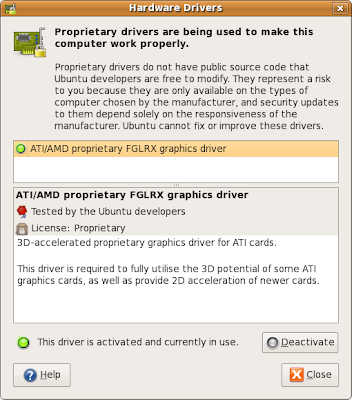
Once you the packages installed, if you are running gnome, go to 'System -> Administration -> Hardware Drivers' and you should see the ATI Driver available for installation. Click on 'Activate' to download the driver and install. It may take a while before the installation completes.


After the installation, you may be prompted to restart your machine. Before you do, just check that the 'fglrx' driver is mentioned in /etc/X11/xorg.conf. Check that the following line is present in your "Device" Section, eg:


Section "Device"
Identifier "Configured Video Device"
Driver "fglrx"
EndSection


Add the line in red into your xorg.conf if it isn't present. Here's an example xorg.conf that may help. Once you are done with the changes, restart your machine.

Checking that fglrx Driver is Running

With luck, your X should be running on your system after the installation. The first thing to do is you check that you have the 'fglrx' driver running. You should get something like this from the output of 'fglrxinfo':


% fglrxinfo
display: :0
OpenGL vendor string: ATI Technologies Inc.
OpenGL renderer string: ATI Radeon HD 3600 Series
OpenGL version string: 2.1.8087 Release


You can also run fgl_glxgears to verify that the card is running correctly visually.

Setting up the Dual Display Configuration

( Update: Compiz does work OK with dual-display, and out of the box as well, just not with rotated-screens. If you don't use rotated screens, this should be fine, so skip the following section. )

The dual-head display set up does not work well with the compositing manager - this is troublesome for Gnome because the default manager is Compiz. You'll have to pass the eye-candy and rely Metacity instead. If you don't, your reconfigured X server either conks out with a backtrace failing on some deprecated calls, or you're greeted with just a wallpaper background or a black screen.

To get access to the settings, you'll need gconf-editor which is an X application, so you should change this setting before you try restarting X in dual-head mode.

Run gconf-editor and change the key value in /desktop/gnome/applications/window_manager/default and /desktop/gnome/applications/window_manager/current from '/usr/bin/compiz' to '/usr/bin/metacity'


Next is to make changes in your xorg.conf file. While ATI provided the default tools like 'aticonfig' and ATI's Catalyst Control Centre ('amdcccle'), I'll recommend you avoid them for now (see Troubleshooting for why).

Here's an excerpt from my xorg.conf as an example:


Section "Device"
Identifier "ATI Radeon HD 3650 [0]"
Driver "fglrx"
BusID "PCI:1:0:0"
Screen 0

# only need to set it one time for a dual-head card
# Option "UseFastTLS" "1"
# Option "VideoOverlay" "on"
# Option "OpenGLOverlay" "off"
EndSection

Section "Device"
Identifier "ATI Radeon HD 3650 [1]"
Driver "fglrx"
BusID "PCI:1:0:0"
Screen 1

# Rotation: Not supported as an option directly at the moment
# Option "RandRRotation"
# Option "Rotate" "CCW"
EndSection

Section "Monitor"
Identifier "Monitor 0"
EndSection

Section "Screen"
Identifier "Screen 0"
Monitor "Monitor 0"
Device "ATI Radeon HD 3650 [0]"
DefaultDepth 24
SubSection "Display"
Viewport 0 0
Depth 24
EndSubSection
Option "DPMS"
EndSection

Section "Screen"
Identifier "Screen 1"
Monitor "Monitor 1"
Device "ATI Radeon HD 3650 [1]"
DefaultDepth 24
SubSection "Display"
Viewport 0 0
Depth 24
EndSubSection
Option "DPMS"
EndSection

Section "ServerLayout"
Identifier "Default Layout"
Screen "Screen 0"
Screen "Screen 1" RightOf "Screen 0"
EndSection

Section "ServerFlags"
# have to disable xinerama if I want screen rotation
Option "Xinerama" "off"
EndSection


The full xorg.conf file can be found here. Make the relevant changes, keep your fingers crossed, and restart your computer.

Screen Rotation

If you've managed to get this far, I'd assume that you have your dual head display working by now. If you wanted more fun out of your display, you can try the rotation capabilities provided by randr. The randr extensions are disabled by default; if you tried xrandr without enabling the extensions you're going to get this message:


% xrandr --output default --rotate left
xrandr: output default cannot use rotation "left" reflection "none"


To enable the randr extenstions, use the 'aticonfig' tool:


% aticonfig --set-pcs-str='DDX,EnableRandr12,TRUE'


Restart X or your computer after you made the changes.

While the ATI installer versions works without a hitch on older versions of Ubuntu, rotation is the only case it doesn't work right. For your window manager to detect it's dimensions properly, you'll have to install Ubuntu's version of fglrx, which somehow takes care of the rotation properly compared to the ATI installer version. Rotation also will not work if you are running in Xinerama configuration - you'll end up with areas on your workspace not being accessible by your mouse.

While Gnome allows the option to change its screen rotation from its menu, it doesn't seem to be able to rotate the screen even when the option is set. This means the screen you want rotated will always start landscape every single time it starts up. At least xrandr now can detect all the screens that you have available on your card and perform rotation on it:

% xrandr
Screen 1: minimum 320 x 200, current 1024 x 1280, maximum 1280 x 1280
DFP1 disconnected (normal left inverted right x axis y axis)
DFP2 connected 1024x1280+0+0 left (normal left inverted right x axis y axis) 338mm x 270mm
1280x1024 60.0*+ 75.0 75.0 70.0 60.0*
1280x960 60.0 60.0
1152x864 75.0 70.0 60.0
1280x768 59.9
1280x720 60.0
1024x768 75.0 75.0 72.0 70.1 60.0
800x600 72.2 75.0 70.0 60.3 56.2
720x480 60.0
640x480 75.0 72.8 75.0 60.0
640x432 60.0
640x400 75.1 59.9
512x384 60.0 74.9
400x300 75.0 60.7
320x240 75.6 60.0
320x200 75.5 60.1
CRT1 disconnected (normal left inverted right x axis y axis)
CRT2 disconnected (normal left inverted right x axis y axis)
TV disconnected (normal left inverted right x axis y axis)

To do rotation, you'll have to invoke this command every single time you log in:


% xrandr --output DFP2 --rotate left


Replace DFP2 with whatever screen xrandr reports you have.

Troubleshooting

1) There are a few times I had my run-ins with the utility tools ATI provides. Firstly with 'aticonfig'. While it proves useful sometimes, at others, it screws up your xorg.conf configurations. What I'll recommend is that you play around with aticonfig, and copy the relevant parts it generated into your own xorg.conf file, instead of relying on it blindly.

2) The other tool, ATI's Catalyst Control Centre ' - amdcccle', is just pure evil IMHO. The ATI drivers install an important file called '/etc/ati/amdpcsdb', which it loads independently from xorg.conf. If you're finding that X isn't working anymore even with an xorg.conf file you know to have worked previously, it's most likely that the amdpcsdb has been corrupted, which I find that happening from tinkering around with amdcccle, which is probably the biggest time wasted in trying to hunt down spurious problems.

If your card hangs even if Sysreq keys doesn't work no matter what xorg.conf parameters you've changed, the first thing is probably to try to restore the database. The way I got it to work again was by coping over the amdpcsdb.default file to amdpcsdb, eg:


% cp /etc/ati/amdpcsdb.default /etc/ati/amdpcsdb


Do make backups of the original file before you do that, I'm not responsible for any loss or damage it would cause!

3) If X turns into a black screen after you've logged out, try adding or modifying the following line inside /etc/gdm/gdm.conf to true:


# If you are having trouble with using a single server for a long time and want
# GDM to kill/restart the server, turn this on. On Solaris, this value is
# always true and this configuration setting is ignored.
AlwaysRestartServer=true


Monday, February 09, 2009

Confessions of a 'Ctrl-Alt-Del' Addict

Growing up in a world where MS-DOS was the first operating system I've ever used certainly leaves me rather brain-damaged when it comes to the 3-finger salute of 'Ctrl-Alt-Del'. That key combination literally is the 'One Keystroke That Rules Them All' - more or less, it's the last thing that will probably still work in the face of a catastrophic computer failure.

Obviously, I never did wean off from my un-elite MS heritage, so it should come as no surprise that I sometimes still use 'Ctrl-Alt-Del' to solve my problems in Linux. Still, it's nice to know that Linux on the whole has always been accommodating enough to include that magic keystroke to satisfy the likes of people like me - most distributions secretly sneak in a line in /etc/inittab (or /etc/event.d for Ubuntu's Upstart) to make it reboot should I fancy myself into fondling those keys when my urge arises, although I must say I have less urges to do so these days ever since I've migrated to Linux, so thanks for asking!

Even when in graphical mode (it's called 'X-Windows' by the way, but you can simply call it 'X' if you want to be a smarty pants, but calling it 'Windows' is plainly an insult!), most window-managers still associate it with some behaviour, like invoking 'xkill' or popup for a shutdown menu. I think some window-managers even invoke the screensaver for that! (I don't even want to go there - that's just plain wierd!)

Shame to say, I've only recently discovered the equivalent of 'Ctrl-Alt-Del' in the Linux world after using it for 8 years!

The magic keys are known as 'System Request' (Sysreq) keys, the all powerful keystrokes a man can invoke (then pray) if your system ever gets f**ked or becomes totally unresponsive. Before you even hit the power switch, try holding down the 'Alt-PrintScreen' keys, and type in the following letters: r-s-e-i-u-b

A good way to remember it is by the phrase:

"Reboot System Even If Utterly Borked"

With luck, that will try to kill all processes gracefully, sync all data to your drives, unmount them, and reboot your system. There's more to the Magic Sysreq keys than I have let on, and more details can be found here.

There are a few other neat tricks with the Sysreq keys, like killing off errant applications that's chewing off too much of your system memory with 'Alt-PrintScreen' + r-f.

A pity that I've only learnt it after such a long while, for it would have been really helpful when I was tearing my hair off a while ago when Rubygems was chewing up all my free memory and thrashing my harddisk from all that silly swapping.
Saturday, February 07, 2009

Ubuntu 8.04's Generic Kernel Hangs Machine

(Updated: To solve your problem, upgrade to Ubuntu 8.10. The newer kernel does not suffer from the problem mentioned below)


If you are using a Vostro 200, this post may apply to you, but bear with my few paragraphs of rant before I give you a fix to the problem. :)

Bloody linux has done it again, borking up my machine during an upgrade cycle. That's always why I'm hesitant on upgrading unless there is no choice. I'll leave the FOSS purists to argue about the concept of 'free' in whatever way they like, but I've always been mindful that there is a hidden cost involved in using Open Source software - you're paying it with your time as a guinea pig for the developers to solve the problems you've encountered.

One way to mitigate that cost is by not using the most cutting edge versions of software - in that way, you're relatively safe from any initial teething issues that still needs to be fixed. But the bad news is, stable/working probably equals to 5 years or more in the FOSS world, and computer hardware moves faster than that.

Given the fast turnover of computer peripherals, no sensible shop will stock 5 year old hardwares to sell it to you, and hence my problems started when I added a new ATI Radeon card to the system. The last known working kernel for the Vostro had been 2.6.22-14-generic, which I had found out a long time ago when I had 'apt-getted' a 2.6.22-16-generic kernel. The obvious quick-fix then was to be make GRUB boot my older kernel, to which I left it at that.

But given that I had installed a new card and needed to install ATI's newest driver, the driver installer, in cahoots with dkms, decided that I wanted a 2.6.22-16-generic kernel module, which obviously screws up X, and hangs my machine whenever the xserver tries to start.

So I'm left with the situation that either the kernel will hang, or X will. Greeeeat.

Since I had been holding off upgrading from Gutsy to Hardy for a long while, I decided to take a gamble to see if the upgrade to a newer kernel would have solved the problem, since it's probably 1 year past the last release cycle. But it turns out to be a real awful mistake - upgrading to 2.6.24-23-generic still screws up the SATA controller, ejecting me to busybox's prompt after giving the following messages:

ata1.00: qc timeout (cmd 0x27)
ata1.00: failed to read native max address (err_mask=0x4)
ata1: failed to recover some devices, retrying in 5 secs

...

ata2.00: qc timeout (cmd 0x27)
ata2.00: failed to read native max address (err_mask=0x4)
ata2: failed to recover some devices, retrying in 5 secs

...

I can imagine Mac users laughing with derision at me right now - 'Get a Mac, it just works!'

After wasting two nights of precious time booting into my old kernel and trying to coax xserver and the fglrx driver to play nice, I decided to revisit the issue of fixing the kernel problem. After a bit of digging, I found the solution in launchpad's bug report: 'Ata Revalidation Failed'. To solve the problem, add the argument 'irqpoll all_generic_ide' into the kernel line in GRUB:

title        Ubuntu 8.04.2, kernel 2.6.24-23-generic
root (hd0,0)
kernel /boot/vmlinuz-2.6.24-23-generic root=UUID= ro irqpoll all_generic_ide
initrd /boot/initrd.img-2.6.24-23-generic
quiet

I don't know what exactly the kernel flag does, but I suppose the SATA controller wouldn't jive with the kernel and needed a jolt of forcible of polling from the kernel for it to work.
Tuesday, February 03, 2009

It's Alive!

In the deep, dark dungeons where a lone man is working in near darkness, only to be briefly illuminated by random arcs of lightning bolts and the cackle of electricity zipping through the air.

This man, who loomed larger than he actually is from the momentary manifestation of his silhouettes, seemed to be working on something rather intently, only to have him stop and suddenly exclaim:

Dr. Frankenstein:
It's Alive!

Frankenstein's monster: Is it, Solaris?

Dr. Frankenstein: No, Ubuntu my friend, Ubuntu!


A Resurrected Sun UltraSparc 5 running on Ubuntu Linux! Woot! :)
Wednesday, June 25, 2008

Printing Syntax Highlighted Source Code

Sometimes, reading code from paper can be easier than reading it from the screen. However, if you printed it straight with the 'lpr' command, you'll lose all your syntax highlighting. There is a way of solving this problem by using GNU 'enscript'.

For example, if you wanted to print syntax highlighted ruby code:


enscript --color=1 -Eruby your_source_code.rb


The '-E' flag tells enscript that the code is ruby, while '-color' is self-explanatory. If you wanted to find out what other syntax highlightings are availabe, use this command:


enscript --help-highlight


However enscript is more than just that. For example, if I wanted it with line numbering, landscaped and in two-columned format (thus saving space), I can do this:


enscript --color=1 -Eruby -c2 -C1 -r -j your_source_code.rb


where:
-c2: 2 columns
-C1: start line numbering from 1 onwards
-r: print in landscape
-j: print border around the columns

It can even generate syntax highlighted code in html, which makes it useful when you want to blog about source code:


enscript --color=1 -w html -Eruby your_source_code.rb


Its 'man page' describes it as "convert text files to PostScript, HTML, RTF, ANSI, and overstrikes" probably doesn't do it much justice, given that it's capable of doing much more; my examples have barely skimmed its surface, so I highly recommend you read more into it to find out enscript's full capabilities.
Saturday, June 14, 2008

Installing OpenGrok On Ubuntu Linux

I am really impressed with OpenGrok, a web-based source code search engine that I've found while I was trying to look up OpenJDK's source code. It is pretty cool as OpenGrok allows you to point your browser into an exact line of source code in your respository, allowing citations directly for discussion using hyperlinks, rather than cutting and pasting chunks of code. I find useful for annotating code, like when I'm using a wiki in conjunction with it to document design considerations for the source.

I'm only supplementing OpenGrok documentation because there were some parts of it which were less clear, taking longer than I expected to get it running. Hopefully, these instructions will help you cut down your setup time.

The assumption is that you're installing from a bare-bones Ubuntu system, and all commands here assume that you are root, which if you're like me, coming from a Gentoo background and sick of typing sudo all the time, you stay rooted all the time by using:


sudo -i


The next thing to do is to get all the relevant software via aptitude. I'll be using Apache Tomcat as my application server:


aptitude install sun-java6-jdk tomcat5.5 exuberant-ctags


Before we set up OpenGrok, we need to create the directory structure to store the files. For the sake of brevity, I'll use the same directory structure from OpenGrok's EXAMPLE.txt:


/opengrok
|-- bin
|-- data
`-- source


Download the tar.gz archive from its website, unpack and extract it. Copy the OpenGrok binaries into the /opengrok/bin:


# cp -r run.sh opengrok.jar lib /opengrok/bin


Edit run.sh and setup up the following parameters:


SRC_ROOT=/opengrok/source
DATA_ROOT=/opengrok/data
EXUB_CTAGS=/usr/bin/ctags


Note that I have put in the default location for the installed ctags for Ubuntu, you may have different locations/application names depending on your Linux distro. You'll then have to configure the web application. Go to the directory where you've downloaded your files, and unzip source.war to make modifications:


# mkdir source
# cd source
# unzip /path/to/opengrok-release/source.war


And make changes into WEB-INF/web.xml. The completed changes look like this:


<context-param>
<param-name>DATA_ROOT</param-name>
<param-value>/opengrok/data</param-value>
<description>REQUIRED: Full path of the directory where data files generated by OpenGrok are stored</description>
</context-param>

<context-param>
<param-name>SRC_ROOT</param-name>
<param-value>/opengrok/src</param-value>
<description>REQUIRED: Full path to source tree</description>
</context-param>

<context-param>
<param-name>SCAN_REPOS</param-name>
<param-value>false</param-value>
<description>Set this variable to true if you would like the web application to scan for external repositories (Mercurial)</description>
</context-param>


The text coloured red are the parts where you need to make modifications. The tags in blue indicate where the XML has originally been commented out by <!-- and --> you'll have to take them away.

Once that's done, you'll have to rezip the .war file back in place, and put it into Tomcat's webapps directory:


# zip -r source.war ./
# mv source.war /usr/share/tomcat5.5/webapps


After which, we'll need to configure our source code for OpenGrok to use, and set it up:


# cd /opengrok/source
# cp -r /your/source/code/ .
# java -Xmx1524m -jar opengrok.jar -W /opengrok/configuration.xml -P -S -v -s /opengrok/source -d /opengrok/data


This will generate the list of indices that allows OpenGrok to cross reference your source code. With that done, the final task is to setup Tomcat so that it has correct privileges. Append the following lines to /etc/tomcat5.5/04webapps.policy:


grant codeBase "file:${catalina.home}/webapps/source/-" {
permission java.security.AllPermission;
};

grant codeBase "file:${catalina.home}/webapps/source/WEB-INF/lib/-" {
permission java.security.AllPermission;
};


I'm just being cavalier here by giving full security access to OpenGrok, which should be safe. But I only doing it given because my application is firewalled from the outside world, so do make your own security adjustments appropriately! Once that's done, restart Tomcat:


# /etc/init.d/tomcat5.5 restart


You should now have a functioning own OpenGrok respository to play with! However if you get an error with the stack trace showing Apache Lucene not being able to create a file, grant full permissions to the data directory:


# chmod -R 777 /opengrok/data/


Wednesday, May 28, 2008

Ubuntu 8.04 Crashes Upon Shutdown

My laptop used to hang intermittently during shutdown when using Ubuntu Linux 7.10. Now the problem has become worse after the upgrade to 8.04 - it's almost always reproducible on my Dell 700m - my screen just turns black at shutdown. Everything freezes, even on the hardware level: when the low-level 'Caps Lock' and 'Number Lock' LEDs don't even respond to keypresses, it's almost guaranteed that the hardware is locked up.

It is a critical problem, and something that has caught me by surprise. Initially, I assumed that the problem is some minor buggy code in Xserver that's causing a race condition resulting in the hangups, something I assumed will be fixed with the upgrade. It turns out that I was wrong - the upgrade has actually made it worse!

It's unacceptable that I have to hard reset my laptop every single time I shutdown. Often when it goes back up again, the ext3 journaling system indicates that I had orphaned inodes to be cleaned up, or in other words, uncompleted data writes to harddisk suggesting possible data corruption.

While looking for a solution, I was surprised that the problem seems to be quite widespread; there are plenty of bug submissions (like this, this or this) that has been lingering around for Intel's 8xx/9xx series of graphics cards already.

It seems that the current 'xserver-xorg-video-intel' package is relatively new and for some reason does not initialize the graphics card properly. The current fix that works for me is to make some modifications to Xorg.conf, presumably to either force it to initialize itself properly or avoid using the garbaged area:


Section "Device"
Identifier "Intel Corporation 82852/855GM Integrated Graphics Device"
Driver "intel"
BusID "PCI:0:2:0"
Option "ForceEnablePipeA" "true"
EndSection


If you're having the same problems with your Intel-based graphics card on Ubuntu, adding the line in red might help you.

I'm still annoyed by the fact that Ubuntu has decided to ship and use 'xserver-xorg-video-intel' instead of 'xserver-xorg-video-i810' (which was directly contributed by Intel, methinks) that is more stable, and may have avoided the problem in the first place.

Maybe the 'intel' driver has more features and improvements than the 'i810', and more actively maintained, but it is not right that end-users have to bear the brunt of critical bugs that freezes the computer - end users are not guinea pigs for faulty drivers that are not ready for prime time yet, irregardless of whatever new features that is touted to have. If it's not ready, it's not ready, geddit?

I don't think the Open Source guys want to tarred together with a the same brush as a buggy incomplete operating system like Windows Vista, right? :P
Thursday, April 10, 2008

Disabling Terminal Flow Control Keystrokes

If you've ever encountered the situation where you've accidentally typed the <ctrl-s> keystroke and your terminal seems to 'hang', that's because you've typed the 'XOFF' special character which tells the terminal not to accept any more key inputs.

The way to restore terminal responsiveness is by typing the <ctrl-q> keystroke ('XON') to restore flow control. If you want do disable this feature, use the following command on your shell:


stty -ixon


Tuesday, January 29, 2008

Proxy forwarding on Apache

If you're hosting on a web server that requires Apache to be the front-end, like using it as a virtual domain host for multiple domains, chances are it'll be difficult for you to swap Apache with any other web server, especially if the other domains are happily hosted without a problem. But what if you are required to use some other app servers without taking away Apache instead?

I'm not sure about most distributions, but mod_proxy comes default with the Apache distribution, but it's just not enabled in RedHat. So in order to make use of mod_proxy, you'll need to enable it first. Stick this somewhere in your Apache configuration file:


LoadModule proxy_module modules/mod_proxy.so
LoadModule proxy_balancer_module modules/mod_proxy_balancer.so
LoadModule proxy_http_module modules/mod_proxy_http.so


After which you can start your other app servers at unoccupied ports on your server, eg. 8080, and setup Apache to perform the forwarding. An example setup may look something like this:

<virtualhost *.80>
ServerName yourdomain.com
ServerAlias www.yourdomain.com
ServerAdmin admin@yourdomain.com

ErrorLog /var/log/[wherever.your.error.file.is]
CustomLog /var/log/[wherever.your.log.file.is] custom

ProxyPreserveHost On

# Example to serve the entire domainname, from the root directory (/)
ProxyPass / http://127.0.0.1:8080/
ProxyPassReverse / http://127.0.0.1:8080/

</virtualhost>


The configuration assumes that your alternate app server is hosted on the same server on port 8080 as indicated, given that port 80 is already occupied by Apache. Otherwise this should allow all connections to be transparently forwarded to your new app server without losing functionality of your existing hosts.